
フォーム読み込み中



初心者でもできる、Azure CosmosDBとPython or Node.jsで始めるRESTful APIサービス構築方法

Batch/OLAP Software Engineer, CRE(Customer Reliability Engineer)
大原 陽宣
多様多種で複雑なデータを明確化し、テクノロジーでイノベーションを起こすことで、昨日までは不可能だったものを、明日は可能になるようなデータエンジニアを目指しています。Apache HBaseやRaftアーキテクチャなどの分散技術を得意としつつ分散データベースやデータ分析基盤、Kubernetesを担当。Apache Incubator等OSS活動中。Alibaba Cloud Expert、Google Cloud Expert。
2023年2月27日掲載

Azure Cosmos DBは、モダンなアプリ開発のためのフルマネージドNoSQLデータベースです。これは、Core(SQL)API、MongoDB用API、Cassandra API、Gremlin API、およびテーブルAPIを含む、複数のデータベースAPIを提供します。
本記事では、CosmosDB Core API を操作して、Node.js と Python をベースにした簡単なRESTful API を構築する方法をご紹介します。
1.全体像
CosmosDBを使った、RESTful APIサービス作成方法としての流れ及び全体像は次の図の通りになります。
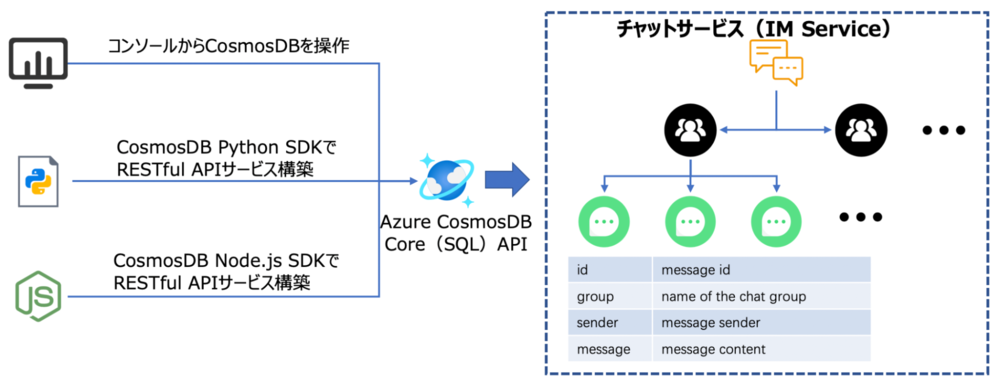
2. CosmosDB リソースの作成とテーブルの準備
CosmosDBのコンソールにアクセスし、ウィザードに従ってCosmosDBアカウントを作成します。
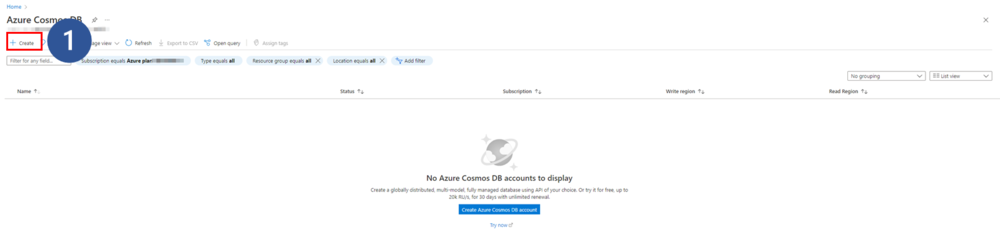
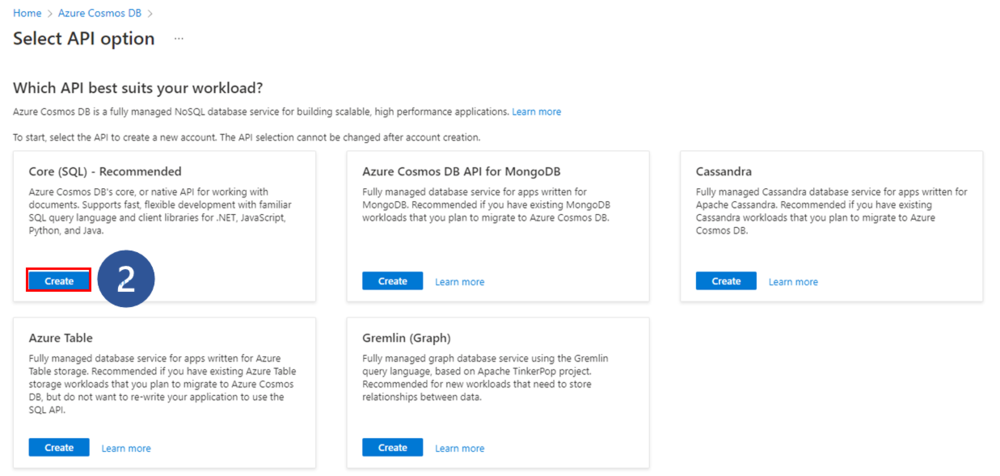
「Create」ボタンをクリックし、作成プロセスに入ります。
APIを選択します。ここではCore(SQL)APIを例とします。
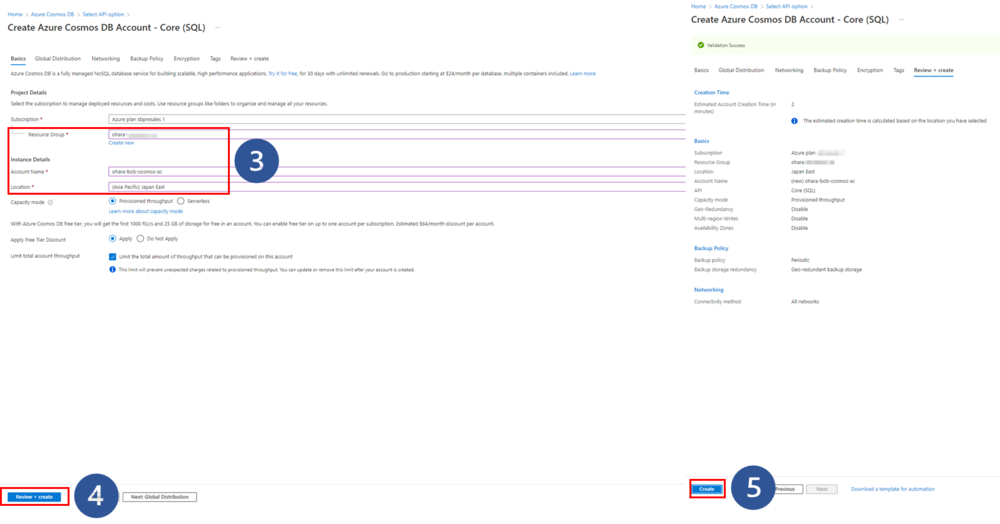
リソースグループ、アカウント名、ロケーションをフォームに入力します。
「Review and Create」ボタンをクリックすると、最終的なレビューページにジャンプします。その他はデフォルトの設定を使用します。お好きなように一つずつ確認、修正します。
- 問題がなければ「Create」ボタンをクリックして作成処理を実行します。
すると、デプロイ中の通知と、完了した旨のメッセージが表示されます。
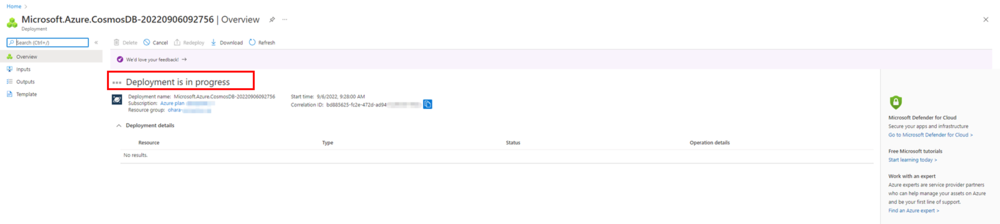

「Go to resource」ボタンをクリックして、「Quick Start」ページに移動します。
3. コンソールからのデータに対する基本操作
Azure CosmosDBはコンテナベースでそれぞれのAPIを作成します。今回はAzure CosmosDBコンソールにある「Quick Start」ページから生成されたリソース配下にて、コンテナ作成及び「Data Explorer」ページで項目追加をします。
<参考>
Quickstart - Azure Cosmos DB for NoSQL client library for Node.js
https://learn.microsoft.com/en-us/azure/cosmos-db/nosql/quickstart-nodejs?tabs=azure-portal%2Cwindows#add-a-container
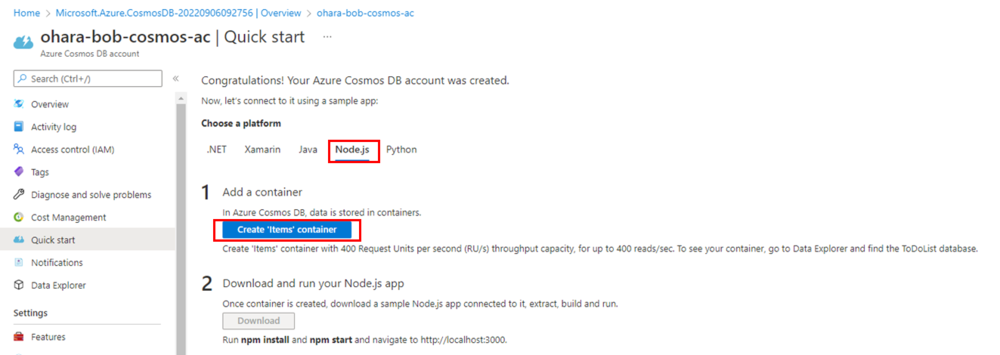
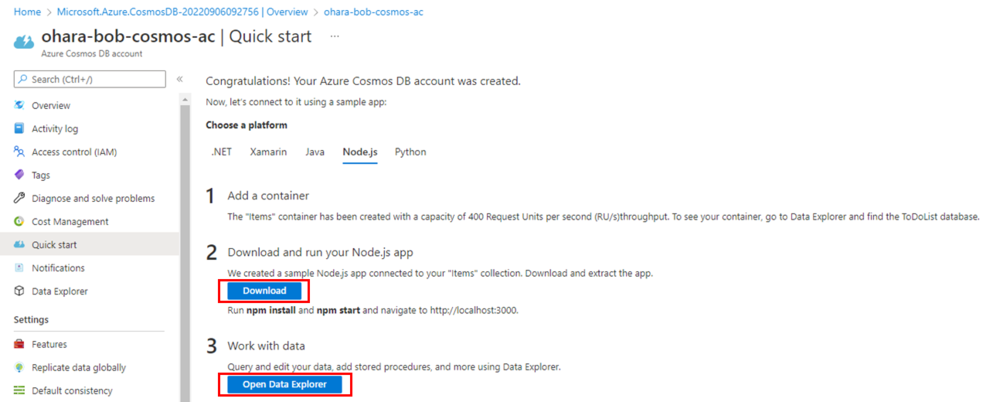
コンテナを作成するには、「Create “Items” container」ボタンをクリックします。この操作には少し時間がかかります。完了すると、ダウンロードボタンが有効になります。ToDoListのデータベースは、後でデータエクスプローラーのページで見つけることができます。
「Download」ボタンをクリックすると、選択したプログラム言語に基づいたサンプルコードが表示されます。Node.jsを例にとると、ダウンロードしたパッケージはDocumentDB-Quickstart-Node.zipであるはずです。
- 「Open Data Explorer」ボタンをクリックして、リソースを確認します。
コンソールのData Explorerページで、SQL API配下にあるToDoListデータベースを確認した後、そこに新規で項目を追加します。今回はチャットサービス(IM Service)を想定して、保存されたメッセージを項目として追加します。メッセージのIDは partitionKey として使用されます。
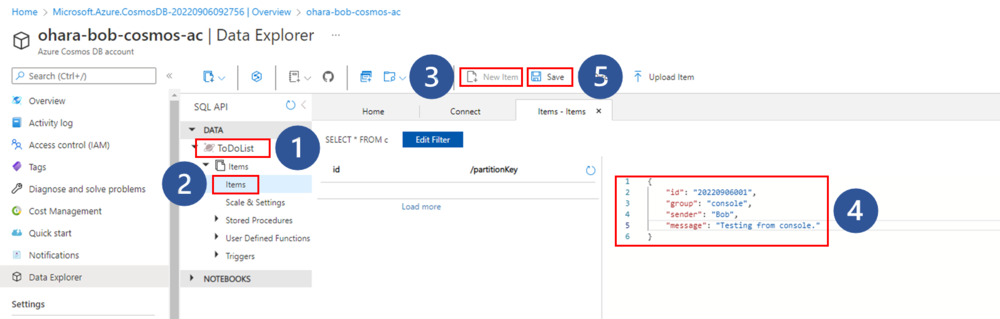
ToDoListデータベースをピックアップしてクリックします。
項目メニューをクリックします。
「New Items」ボタンをクリックします。
エディタにJSON形式で項目やデータを入力します。
- 「Save」ボタンをクリックすると、項目がデータベースに挿入されます。
これにより、ターゲットIDを持つページに挿入されたデータが取得されます。
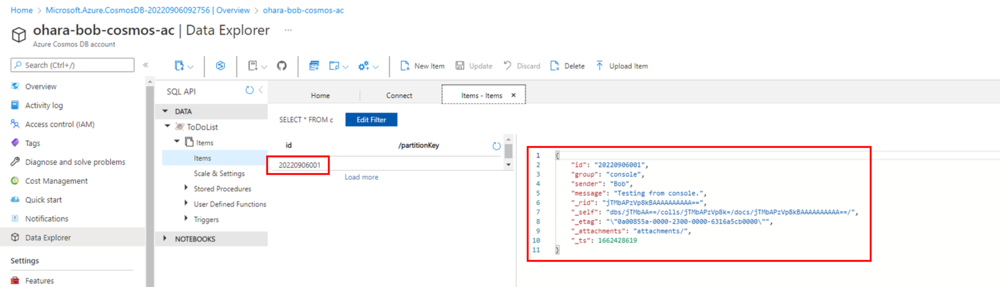
エディタから1つずつデータや項目を追加していく以外に、事前準備したJSONファイルでデータを取り込むことも可能です。
[
    {"id":"20220906002","group":"console","sender":"Bob","message":"Testing from console 002."},
    {"id":"20220906003","group":"console","sender":"Bob","message":"Testing from console 003."},
    {"id":"20220906004","group":"console","sender":"Bob","message":"Testing from console 004."},
    {"id":"20220906005","group":"console","sender":"Bob","message":"Testing from console 005."},
    {"id":"20220906006","group":"console","sender":"Bob","message":"Testing from console 006."}
]
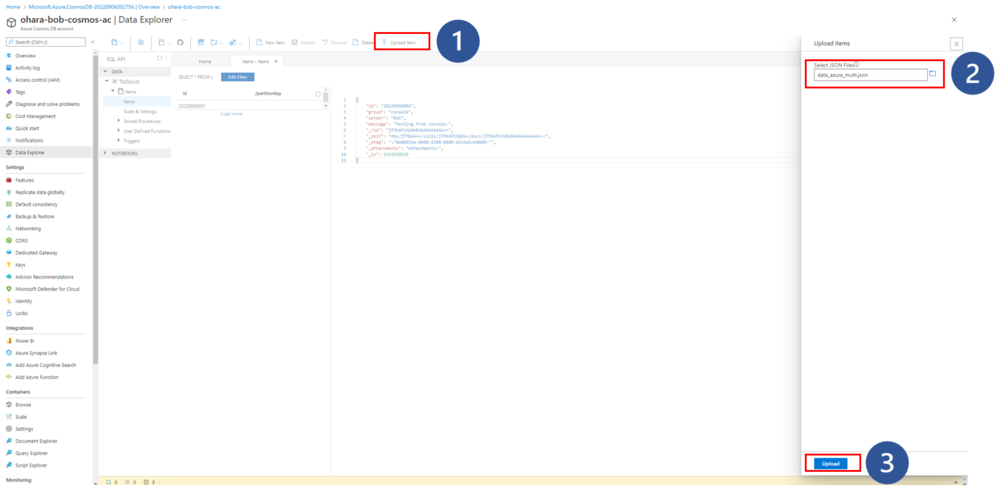
アップロードするJSONファイルを1つまたは複数選択します。各ファイルには、1つのJSONドキュメントまたはJSONドキュメントの配列を含めることができます。
個々のアップロード操作におけるすべてのファイルの合計サイズは、2MB未満である必要があります。より大きなデータセットの場合は、複数のアップロード操作で対処できます。
「Upload」ボタンをクリックすると、データファイルが検証され、インポートされます。アップロードの状況はページ内に表示されます。

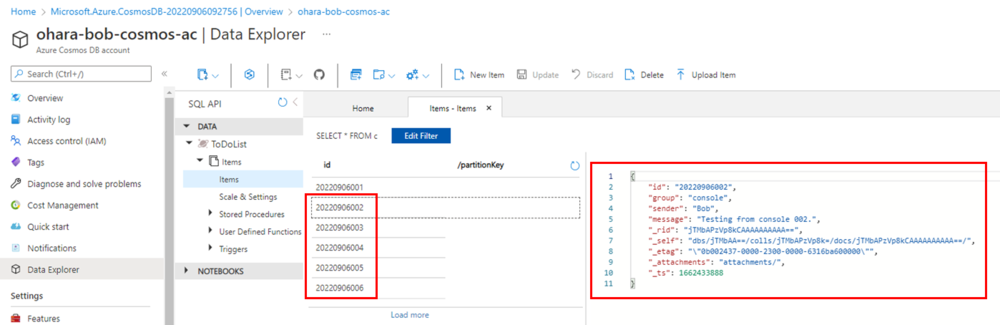
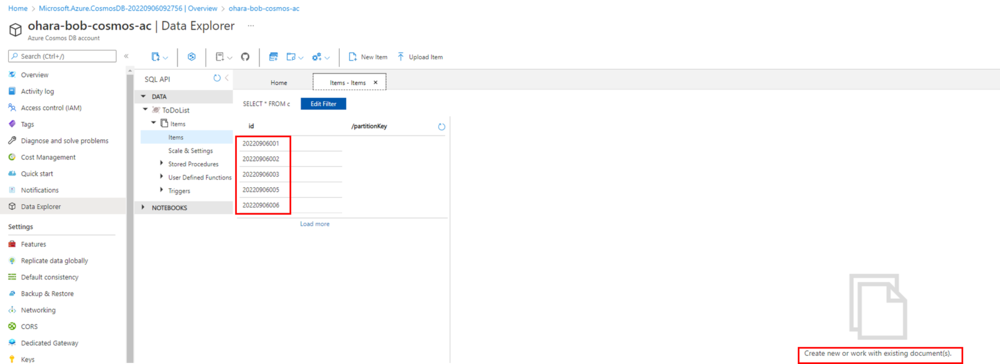
特定のデータや項目を1つピックアップし、ページ内の「Delete」ボタンをクリックしてコンソールから削除します。確認後、削除が実行され、選択されたデータはデータベースから削除されます。

4. Node.js SDKでRESTful APIサービスを構築
Azure CosmosDBによる操作や挙動は概ね把握できたと思うので、今度はNode.jsを使って、CosmosDBによるRESTful APIを作ります。node_az_cosmosという新規プロジェクトフォルダを作成し、その中にnpmコマンドで依存パッケージをインストールします。
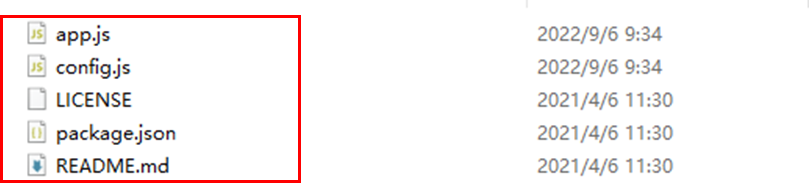
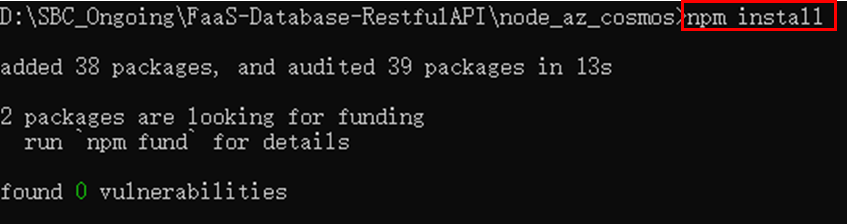
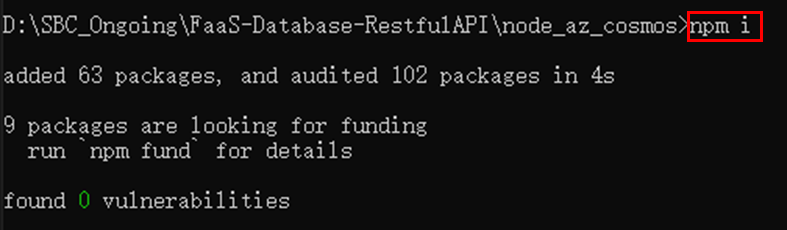
コンソールにて`npm install` と `npm start` を実行します。これにより、ブラウザでhttp://localhost:3000 が見れるようになります。
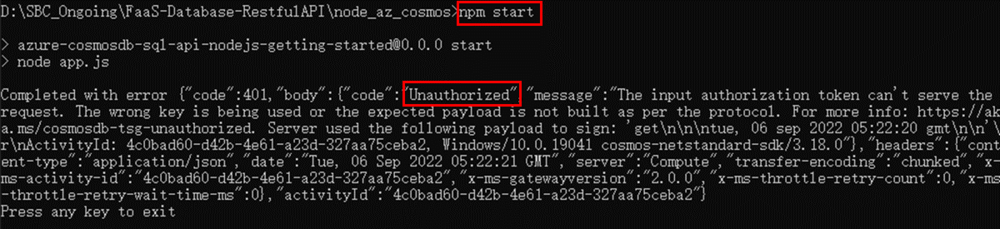
上記、サンプルコードに対し `npm start` を実行しましたが、画像通り「Unauthorized」エラーが発生します。これは、config.jsのエンドポイントとキーが誤っていることが原因です。
var config = {}


config.endpoint = 'https://languye-sql-nb3.documents.azure.com:443/'
config.key = 'G1Wlxck6MhT6w2LNjKmEObPVWLBbcdAio01Fyh1EYfcJPWt0fszjnuTxLIA8Kyd5T6EhAXYCllkWq8za0TaxHg=='


config.database = {
  id: 'ToDoList'
}
……
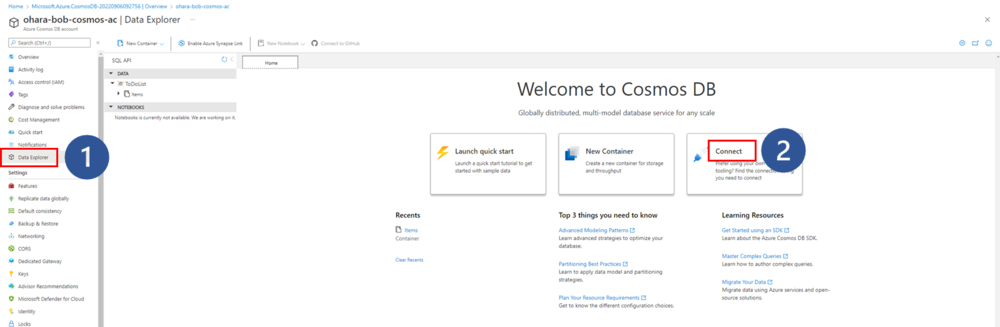
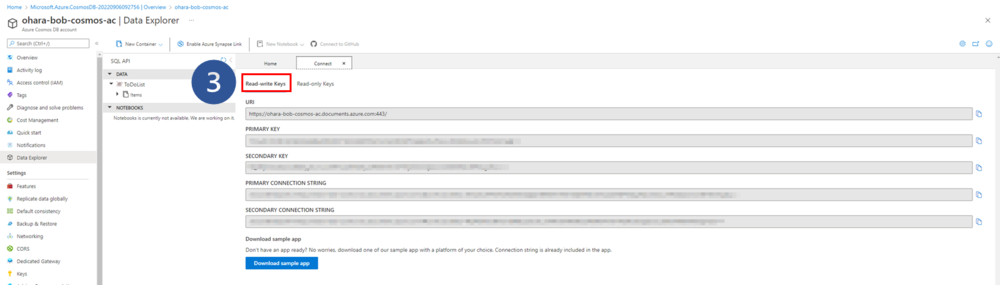
自分のインスタンスに基づいて設定を更新します。データエクスプローラーページの「Connect」タブから、以下のように関連情報を取得することができます。
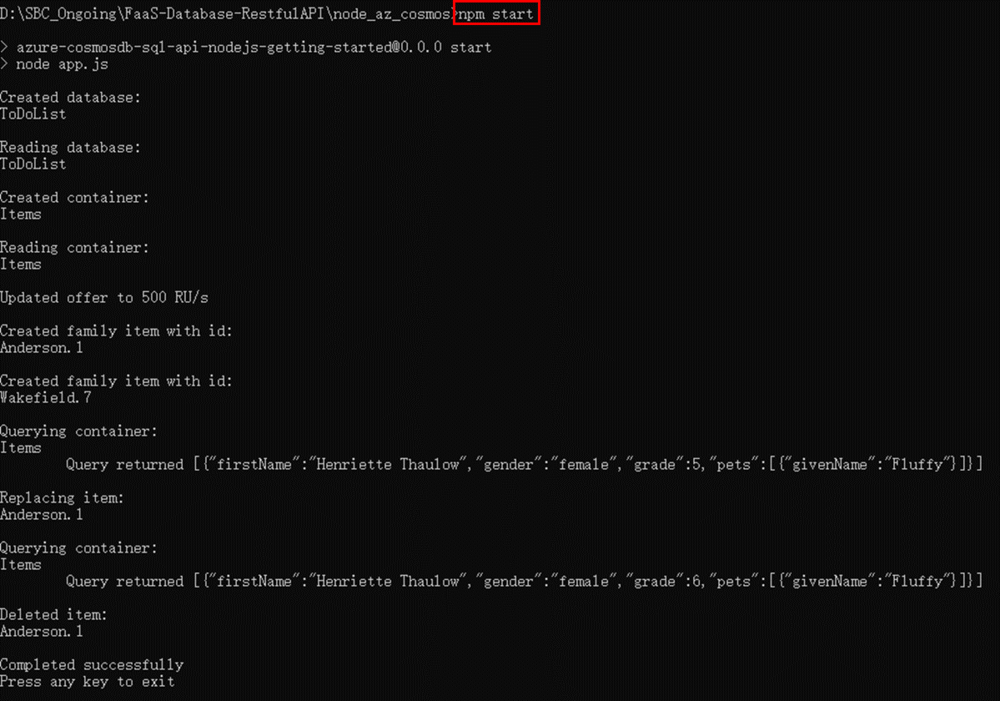
`npm start` コマンドでスクリプトを再実行します。まず、既存のリソースをチェックし、create、query、replace、deleteの各操作を順次実行します。
今度は、サンプルコードを元にローカルのRESTful APIサーバーを構築します。Azureはダウンロードしたサンプルコードの他に、紹介ドキュメントとサンプルプロジェクトをGitHubで提供しています。今回はダウンロードしたサンプルコードを更新して、ローカルの RESTful API サーバーを構築するだけです。
<参考>
Examples for Azure Cosmos DB for NoSQL SDK for JS
https://learn.microsoft.com/en-us/azure/cosmos-db/nosql/samples-nodejs
Developing a Node.js app using the Azure Cosmos DB SQL API
https://github.com/Azure-Samples/azure-cosmos-db-sql-api-nodejs-getting-started
まず package.json を更新し、dependencies セクションに express を追加して、スタートスクリプトを app.js から server.js に変更します。
{
    "name": "azure-cosmosdb-sql-api-nodejs-getting-started",
    "version": "0.0.0",
    "description": "A short sample app to demonstrate how to get started with Azure Cosmos DB's SQL API",
    "main": "server.js",
    "scripts": {
        "start": "node server.js"
    },
    "dependencies": {
        "express": "^4.18.1",
        "@azure/cosmos": "3.9.1"
    }
}
再度、`npm install`コマンドを実行し、expressパッケージをインストールします。
CosmosDBのデータ操作を行うための関数を定義したmessage.jsという名前のjsファイルを新規に作成します。関連する関数はapp.jsにあるものと同様です。
また、config.jsの設定項目(接続、コンテナ、テーブルの情報)を読み込みます。
"use strict";


const CosmosClient = require('@azure/cosmos').CosmosClient


const config = require('./config')
const url = require('url')


const endpoint = config.endpoint
const key = config.key


const databaseId = config.database.id
const containerId = config.container.id


const options = {
    endpoint: endpoint,
    key: key,
    userAgentSuffix: 'CosmosDBJavascriptQuickstart'
};


const client = new CosmosClient(options)


/**
 * Build the item body for the SDK
 */
function getItemBody(id, group, sender, message){
    return {
        "id": id,
        "group": group,
        "sender": sender,
        "message": message
    };
}


/**
 * List all the messages in the database
 */
async function listMessages() {
    const querySpec = {
        query: 'SELECT * FROM c'
    }


    const { resources: results } = await client.database(databaseId).container(containerId).items.query(querySpec).fetchAll();
    return { "Status": "Success", "results": "Get target messages successfully.", "data": results };
}


/**
 * Get target message with specific message id
 */
async function getMessageById(id) {
    const querySpec = {
        query: 'SELECT * FROM c WHERE c.id = @id',
        parameters: [{ name: '@id', value: id }]
    }


    const { resources: results } = await client.database(databaseId).container(containerId).items.query(querySpec).fetchAll();
    console.log(JSON.stringify(results));
    if (results.length == 0) {
        return { "Status": "Failed", "results": "No message under with the conditions.", "data": null };
    } else {
        return { "Status": "Success", "results": "Get target messages successfully.", "data": results[0] };
    }


}


/**
 * Save message with passed data
 */
async function saveMessage(id, group, sender, message) {
    var itemBody = getItemBody(id, group, sender, message);
    const { item } = await client.database(databaseId).container(containerId).items.upsert(itemBody);
    return { "Status": "Success", "results": "Save target message successfully." };
}


/**
 * Delete target message with specific message id
 */
async function deleteMessage(id) {
    var itemBody = getItemBody(id, null, null, null);
    await client.database(databaseId).container(containerId).item(itemBody.id).delete(itemBody);
    return { "Status": "Success", "results": "Delete target message successfully." };
}


module.exports = { listMessages, getMessageById, saveMessage, deleteMessage }
server.js という名前の新しい Node.js ファイルを作成します。このファイルには express server の設定とルーティングが含まれています。
"use strict";


const express = require('express');
const app = express();
const message = require('./message');
app.use(express.json());


app.get('/', (req, res) => {
    res.end('Welcome to CosmosDB RESTful API demo!');
});


app.get('/api/msg', async (req, res) => {
    var results = await message.listMessages();
    res.json(results).end();
});


app.get('/api/msg/:id', async (req, res) => {
    var id = req.params.id;
    var results = await message.getMessageById(id);
    res.json(results).end();
});


app.post('/api/msg', async (req, res) => {
    var id = req.body.id;
    var group = req.body.group;
    var sender = req.body.sender;
    var msg = req.body.message;


    var results = await message.saveMessage(id, group, sender, msg);
    res.json(results).end();
});


app.delete('/api/msg/:id', async (req, res) => {
    var id = req.params.id;
    var results = await message.deleteMessage(id);
    res.json(results).end();
});


const port = process.env.PORT || 5000;
app.listen(port, () => console.log(`Listening on port ${port}`));
これらの設定が順調であれば、プロジェクトの構成は次の通りになります。
.
├── node_modules
├── app.js
├── config.js
├── message.js
├── package.json
└── server.js
ここまで、コードら実行ファイルの準備ができたら、サーバーを起動し、RESTful APIをテストします。`npm start` コマンドを実行し、ポート5000で express サーバーを起動します。

`curl`コマンドでRESTful APIをテストします。冒頭のメッセージが無事取得できればOKです。
curl -X GET http://localhost:5000/

テーブルのすべてのデータや項目を確認し、上記の手順でコンソールから追加された項目を取得します。
curl -X GET http://localhost:5000/api/msg
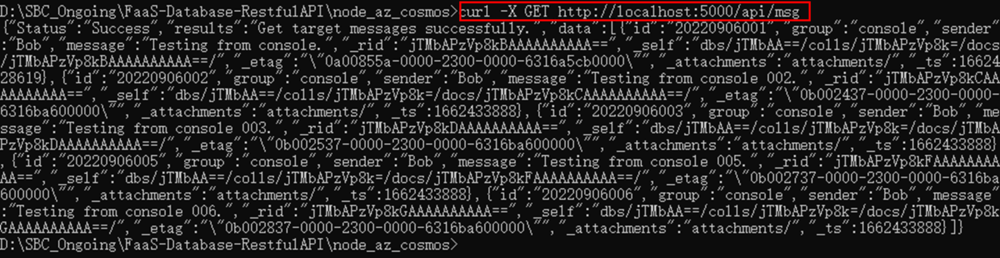
APIから新しいデータや項目を挿入し、特定のidで結果を確認します。
curl -H "Content-Type: application/json" -X POST -d "{\"id\":\"20220907101\",\"group\":\"restful\",\"sender\":\"bob\",\"message\":\"Testing message from Node.js .\"}" http://localhost:5000/api/msg

curl -X GET http://localhost:5000/api/msg/20220907101

特定のidのデータや項目を削除した後、同じidのデータを再度確認します。
curl -X DELETE http://localhost:5000/api/msg/20220907101

curl -X GET http://localhost:5000/api/msg/20220907101

5. Python SDKでRESTful APIサービスを構築
Node.js によるRESTful APIは構築できたので、今度はPythonとflaskパッケージを使ってRESTful APIを作ってみます。この構築にはNode.js SDKと同様にCosmosDBのPython SDKが必要なので、CosmosDB Python SDKを事前に導入する必要があります。CosmosDBは、Python SDKを含む、複数のプログラミング言語用のSDKを提供しています。
<参考>
Examples for Azure Cosmos DB for NoSQL SDK for Python
https://learn.microsoft.com/en-us/azure/cosmos-db/nosql/samples-python
Azure Cosmos DB SQL API client library for Python Samples
https://github.com/Azure/azure-sdk-for-python/tree/main/sdk/cosmos/azure-cosmos/samples
python_az_cosmosという仮想環境によるプロジェクトフォルダを準備し、以下のコマンドで仮想環境を起動します。
py -m venv .venv
.venv\scripts\activate

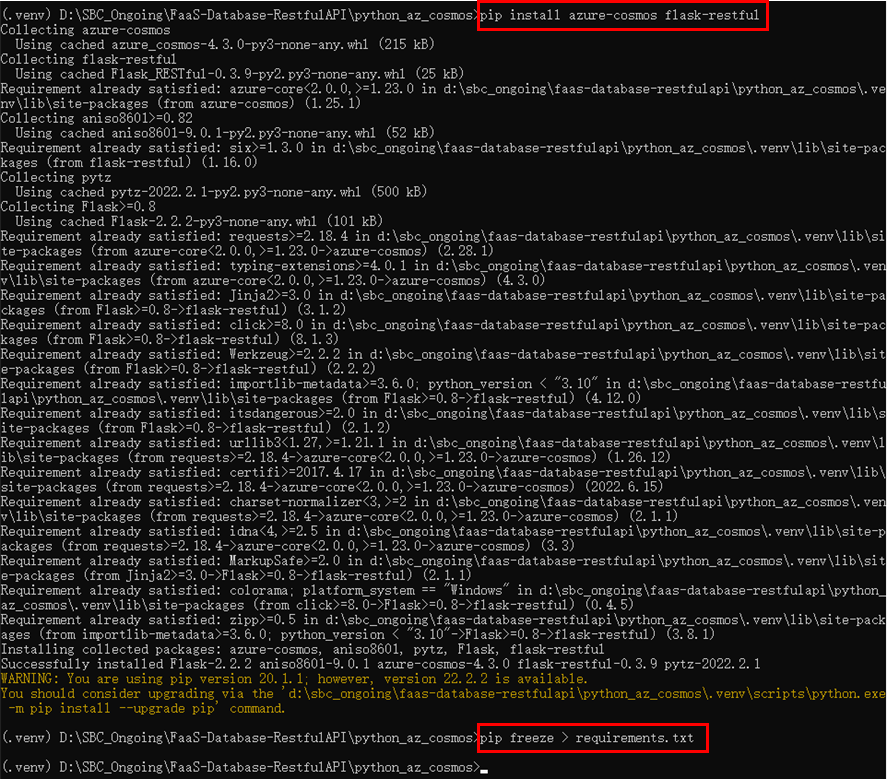
必要な azure-cosmos と flask-restful パッケージを `pip` コマンドでインストールします。要件情報をrequirements.txtに保存します。
cosmos.pyという名前のPythonファイルを新規に作成し、その中にAzure CosmosDBとの接続関数を定義します。
import azure.cosmos.cosmos_client as cosmos_client
import azure.cosmos.exceptions as exceptions
import os


class CosmosManager:


    def __init__(self):
        self.host = os.environ.get('ACCOUNT_HOST')
        self.master_key = os.environ.get('ACCOUNT_KEY')
        self.container = os.environ.get('COSMOS_CONTAINER')
        self.database = os.environ.get('COSMOS_DATABASE')
        self.client = cosmos_client.CosmosClient(self.host, {'masterKey': self.master_key} )
        self.database = self.client.get_database_client(self.database_id)
        self.container = self.database.get_container_client(self.container_id)


    @staticmethod
    def __prepare_item_body(id, group, sender, message):
        return {
            "id": id,
            "group": group,
            "sender": sender,
            "message": message,
            "partitionKey": id
        }

    def create_item(self, id, group, sender, message):
        try:
            item_body = self.__prepare_item_body(id, group, sender, message)
            result = self.container.create_item(body=item_body)
            return {"status": "Success", "results": "Save the target message successfully.", "data": result}
        except exceptions.CosmosHttpResponseError as e:
            return {"status": "Failed", "code": e.status_code, "errMessage": e.message}


    def read_all_items(self):
        try:
            result = list(self.container.read_all_items(max_item_count=10))
            return {"status": "Success", "results": "Get the top 10 messages successfully.", "data": result}
        except exceptions.CosmosHttpResponseError as e:
            return {"status": "Failed", "HTTPStatus": e.status_code, "errMessage": e.message}


    def read_item_by_id(self, id):
        try:
            result = list(self.container.query_items(
                query="SELECT * FROM r WHERE r.id=@id",
                parameters=[
                    { "name":"@id", "value": id }
                ],
                enable_cross_partition_query=True
            ))
            if len(result) == 0:
                return {"status": "Failed", "errMessage": "No target data row."}
            else:
                return {"status": "Success", "results": "Get the target message successfully.", "data": result}
        except exceptions.CosmosHttpResponseError as e:
            return {"status": "Failed", "HTTPStatus": e.status_code, "errMessage": e.message}


    def delete_item_by_id(self, id):
        try:
            result = self.container.delete_item(item=id, partition_key=id)
            print(result)
            return {"status": "Success", "results": "Delete the target message successfully."}
        except exceptions.CosmosHttpResponseError as e:
            return {"status": "Failed", "HTTPStatus": e.status_code, "errMessage": e.message}
サーバーの設定とルートを含む server.py という名前の Python ファイルを新規に作成します。
from flask import Flask, jsonify
from flask_restful import Api, Resource, reqparse
from cosmos import CosmosManager


class Message(Resource):
    def __init__(self):
        self.manager = CosmosManager()
        super().__init__()


    def get(self, id):
        return jsonify(self.manager.read_item_by_id(id))

    def post(self, id):
        args = reqparse.RequestParser() \
            .add_argument('group', type=str, location='json', required=True, help="Empty group") \
            .add_argument('sender', type=str, location='json', required=True, help="Empty sender") \
            .add_argument('message', type=str, location='json', required=True, help="Empty message") \
            .parse_args()

        return jsonify(self.manager.create_item(id, args['group'], args['sender'], args['message']))


    def delete(self, id):
        return jsonify(self.manager.delete_item_by_id(id))

class Messages(Resource):
    def __init__(self):
        self.manager = CosmosManager()
        super().__init__()


    def get(self):
        return jsonify(self.manager.read_all_items())

app = Flask(__name__)
api = Api(app, default_mediatype="application/json")
api.add_resource(Message, '/api/msg/<id>')
api.add_resource(Messages, '/api/msg')
app.run(host='0.0.0.0', port=5001, use_reloader=True)
これで、プロジェクトフォルダは次のようになります。
.
├── .venv
├── cosmos.py
├── requirements.txt
└── server.py
ここまで、コードら実行ファイルの準備ができたら、サーバーを起動し、RESTful APIをテストします。`python server.py`コマンドを実行し、flask サーバを起動します。

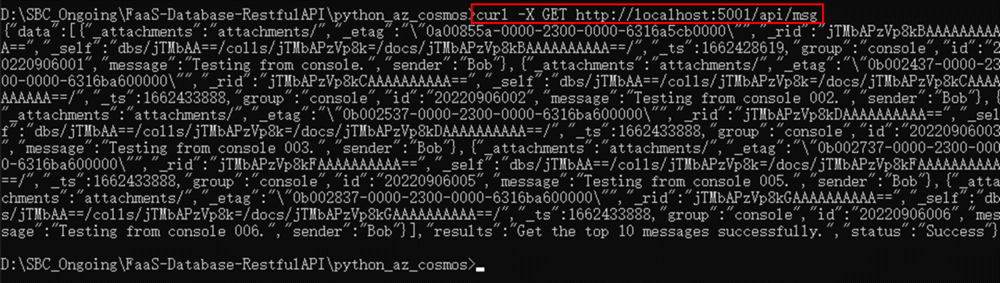
curl コマンドで API 経由でテーブルに新しいメッセージを挿入できるかテストします。
curl -X GET http://localhost:5001/api/msg
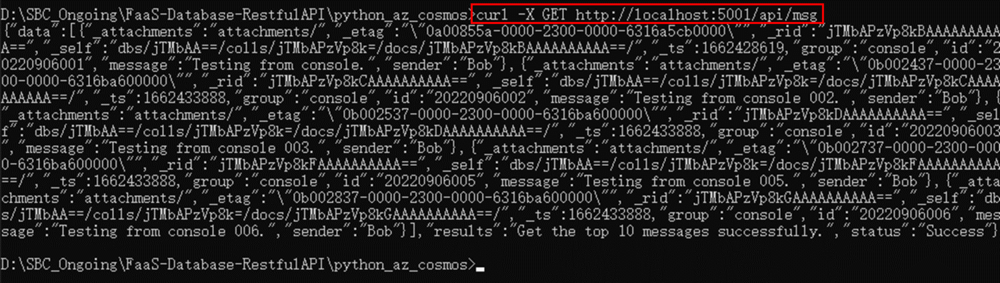
追加テストとして、新しいデータを挿入します。
curl -H "Content-Type: application/json" -X POST -d "{\"group\": \"python\", \"sender\": \"bob\", \"message\":\"Testing message from Python\"}" http://localhost:5001/api/msg/20220907201
新たに追加したデータをidで確認します。
curl -X GET http://localhost:5001/api/msg/20220907201

対象のデータを削除してから、再度idで検索します。
curl -X DELETE http://localhost:5001/api/msg/20220907201
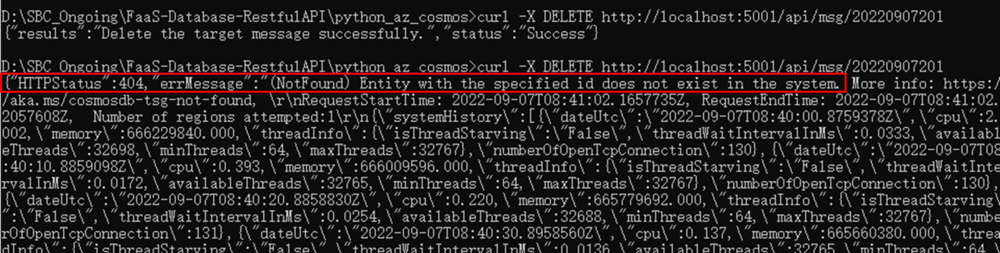
curl -X GET http://localhost:5001/api/msg/20220907201

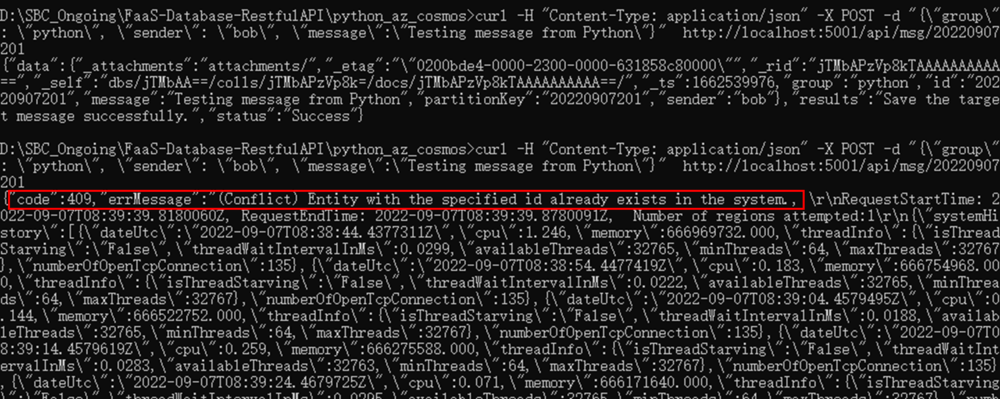
Azure CosmosDBのPython SDKは、データの衝突やデータなしエラーなどのエラーレスポンスを返します。

6. 補足事項: partitionkeyでエラーを修正する方法
Python SDKに基づく削除機能で、partitionKey が設定されていない場合、その分エラーが発生します。エラーメッセージは次のようになります。
The partition key supplied in x-ms-partitionkey header has fewer components than defined in the the collection.
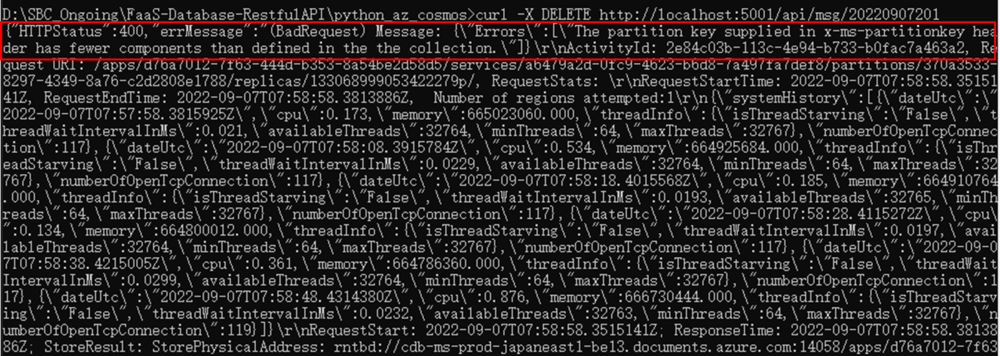
これは、特定のパーティション・キーがないと、サーバーが対象のデータ・項目を取得できないためです。この問題を解決するには、データや項目にパーティション・キーを設定し、それを削除関数のパラメーターとして渡すことができます。あるいは、「enableCrossPartitionQuery」オプションをTrueに設定し、スクリプトがパーティション・キーにまたがってデータを検索できるようにすることもできます。これを参考にするとよいでしょう。
<参考>
Cosmos DB - Delete Document with Python
https://stackoverflow.com/questions/46878227/cosmos-db-delete-document-with-python
デモコードでは、partitionKey をidと同じに設定し、delete関数を正常に実行しています。
   @staticmethod
    def __prepare_item_body(id, group, sender, message):
        return {
            "id": id,
            "group": group,
            "sender": sender,
            "message": message,
            "partitionKey": id
        }
……
    def delete_item_by_id(self, id):
        try:
            result = self.container.delete_item(item=id, partition_key=id)
            print(result)
            return {"status": "Success", "results": "Delete the target message successfully."}
        except exceptions.CosmosHttpResponseError as e:
            return {"status": "Failed", "HTTPStatus": e.status_code, "errMessage": e.message}
7. さいごに
Azure CosmosDBとNode.js もしくは Pythonで始めるRESTful APIサービス構築方法をご紹介しました。この方法は初心者向け記事としても、チャットサービス(IM Service)向けにも適用できますし、10分もせずにRESTful APIサービスを完成することができます。
CosmosDB は NoSQLデータベースとして、Webやモバイルなどのアプリケーションから簡単にアクセスできるよう、Node.jsやPythonなど幅広い言語でのクライアントを提供しています。そのため、どんな言語でも通信プロトコルを意識せずにRESTful APIサービスとして展開することができます。RESTful APIサービスを構築してみたい方は是非参考にしてみるといいでしょう。
関連サービス
\ 業務課題をデジタルで支援 /
デジタルツールの選定から導入の手引きまで、中小規模のお客さまへわかりやすくお伝えします。
メールマガジン登録(無料)
ビジネスに役立つ記事やウェビナー情報をお届けします。
おすすめの記事
条件に該当するページがございません