
フォーム読み込み中



Google Kubernetes Engine(GKE)を使ってNextCloudをデプロイしてみた ※構築手順付き

Batch/OLAP Software Engineer, CRE(Customer Reliability Engineer)
大原 陽宣
多様多種で複雑なデータを明確化し、テクノロジーでイノベーションを起こすことで、昨日までは不可能だったものを、明日は可能になるようなデータエンジニアを目指しています。Apache HBaseやRaftアーキテクチャなどの分散技術を得意としつつ分散データベースやデータ分析基盤、Kubernetesを担当。Apache Incubator等OSS活動中。Alibaba Cloud Expert、Google Cloud Expert。
2022年7月27日掲載

Google Cloudのフルマネージド型KubernetesであるGoogle Kubernetes Engine(GKE)を使って、NextCloudを構築してみたので、その構築手順を紹介します。
はじめに
前回は「サーバレス版KubernetesでNextCloudをAlibabaCloud上に構築する手順」を展開しました。
今回は同じアプローチながら、Google Cloudのフルマネージド型Kubernetesである「Google Kubernetes Engine (GKE)」を使って、NextCloudを構築してみたいと思います。Googleは世界で初めてKubernetesを作った経緯があるだけに構築手順がとてもシンプルです。
一部、Google Cloudのヘルスチェックにはまり、しばらくアクセスができなかった問題もあったので、これもあわせて紹介します。
※本構築をする際、事前にサーバ証明書の準備が必要になります。
全体構成図
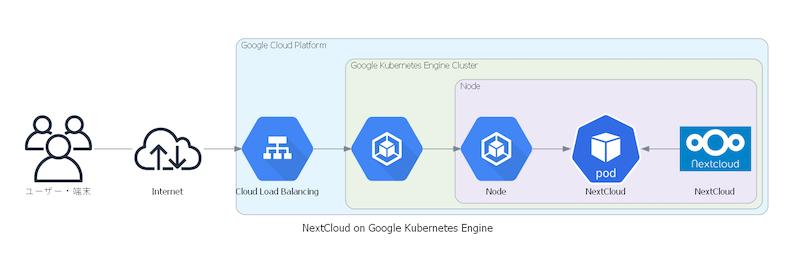
Google Kubernetes Engine (GKE)上でのNextCloudのデプロイとして、全体構成図は次の通りになります。
GKEによるNextCloud構築手順 1.クラスタ作成
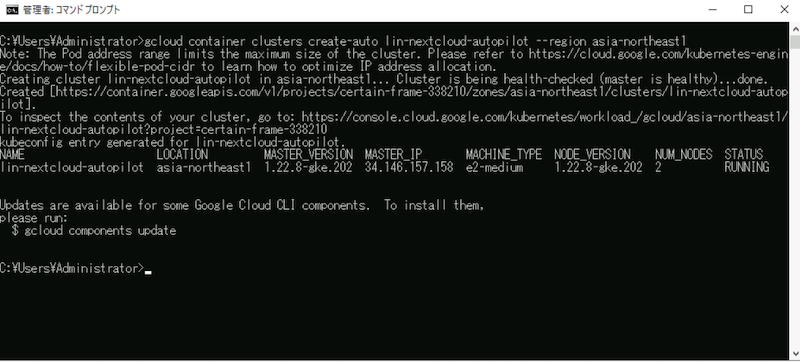
まずはGoogle Cloudを導入したターミナルから、次のコマンドを入力して、GKEを起動させます。あるいは Google Cloudコンソール上のターミナルから入力しても問題ありません。
$ gcloud container clusters create-auto lin-nextcloud-autopilot --region asia-northeast1
GKEによるNextCloud構築手順 2.Kube Config取得
GKEクラスターが無事生成できたら、そのクラスターの設定ファイルであるKube Configを取得します。Kube Configファイルは `gcloud container clusters get-credentials` コマンドで入手できます。
$ gcloud container clusters get-credentials lin-nextcloud-autopilot --region asia-northeast1
GKEによるNextCloud構築手順 3.サーバ証明書アップロード
事前に用意したサーバ証明書をアップロードします。
$ kubectl create secret tls sbcicp1.net --cert sbcicp1.net.pem --key sbcicp1.net.key
GKEによるNextCloud構築手順 4.YAMLファイルデプロイ
viコマンドなどで、https.yamlファイルを作成します。https.yamlファイルの中身は以下の通りです。
```
apiVersion: v1
kind: Service
metadata:
  name: nextcloud
  labels:
    app: nextcloud
  annotations:
    cloud.google.com/backend-config: '{"default": "http-hc-config"}'
spec:
  ports:
  - port: 80
    targetPort: 80
  selector:
    app: nextcloud
    tier: frontend
  type: NodePort
---
apiVersion: apps/v1
kind: Deployment
metadata:
  name: nextcloud
  labels:
    app: nextcloud
spec:
  selector:
    matchLabels:
      app: nextcloud
      tier: frontend
  strategy:
    type: Recreate
  template:
    metadata:
      labels:
        app: nextcloud
        tier: frontend
    spec:
      containers:
      - image: nextcloud:latest
        name: nextcloud
        env:
        - name: OVERWRITEHOST
          value: albnextcloud.sbcicp1.net
        - name: OVERWRITEPROTOCOL
          value: https
        - name: PHP_MEMORY_LIMIT
          value: 20480M
        - name: PHP_UPLOAD_LIMIT
          value: 20480M
        ports:
        - containerPort: 80
          name: nextcloud
        volumeMounts:
        - name: nextcloud-ps
          mountPath: /var/www/html
      volumes:
      - name: nextcloud-ps
        persistentVolumeClaim:
          claimName: pvc-demo
---
apiVersion: networking.k8s.io/v1
kind: Ingress
metadata:
  name: my-mc-ingress
spec:
  tls:
  - secretName: sbcicp1.net
  rules:
  - host: albnextcloud.sbcicp1.net
    http:
      paths:
      - pathType: ImplementationSpecific
        backend:
          service:
            name: nextcloud
            port:
              number: 80
---
apiVersion: v1
kind: PersistentVolumeClaim
metadata:
  name: pvc-demo
spec:
  accessModes:
    - ReadWriteOnce
  resources:
    requests:
      storage: 30Gi
---
apiVersion: cloud.google.com/v1
kind: BackendConfig
metadata:
  name: http-hc-config
spec:
  healthCheck:
    checkIntervalSec: 15
    port: 80
    type: HTTP
    requestPath: /core/img/favicon-touch.png
```
https.yamlファイルの作成が終わったら、kubectl applyコマンドで、https.yamlファイルをデプロイしアプリケーションを構築管理します。ingressの作成には5分くらいかかります。
$ kubectl apply -f https.yaml
GKEによるNextCloud構築手順 5.DNS登録
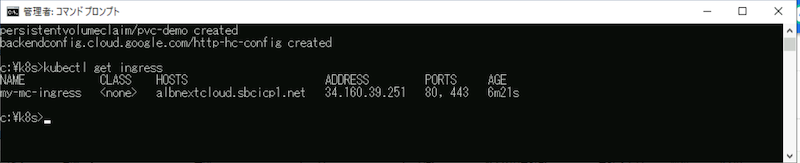
https.yamlファイルのデプロイが完了したら、今度はDNSを登録します。まずは `kubectl get ingress` コマンドを使用して、Ingressリソースが生成されたことを確認します。
$ kubectl get ingress
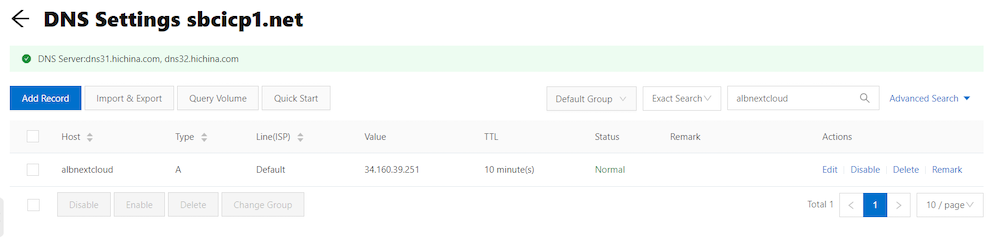
以下の通り、IngressのIPアドレスが表示されます。このIngressのIPアドレスをドメインを管理しているDNSサーバのAレコードに登録します。
GKEによるNextCloud構築手順 6.アクセスしてみる
上記、DNSサーバのAレコードに登録が完了したら、上記HOSTSのURLをブラウザのURLバーに入力してアクセスしてみます。
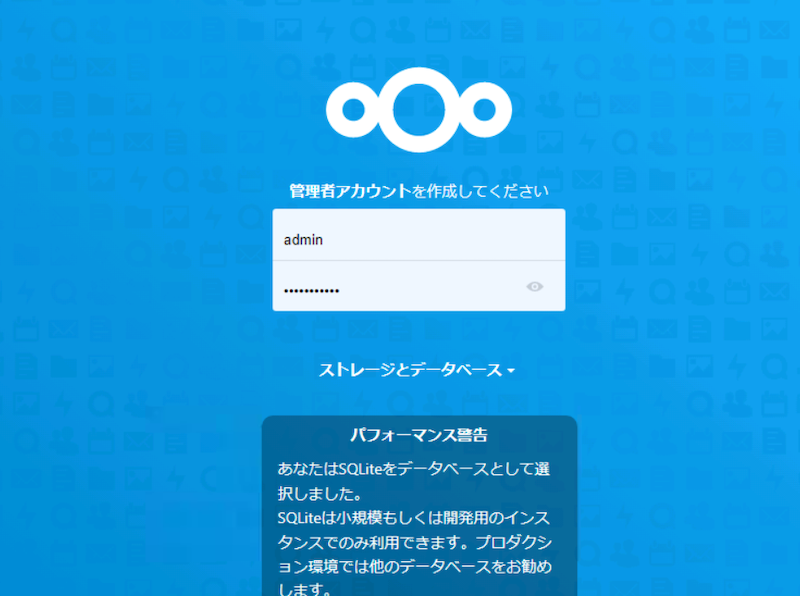
これでGoogle Kubernetes Engine (GKE) によるNextCloudを無事デプロイすることができます。
はまったポイント
上記、NextCloudは無事デプロイできたので、ログインしてみます。ログインページからログインした直後、以下のようなエラーが送出され、アクセスできなくなります。
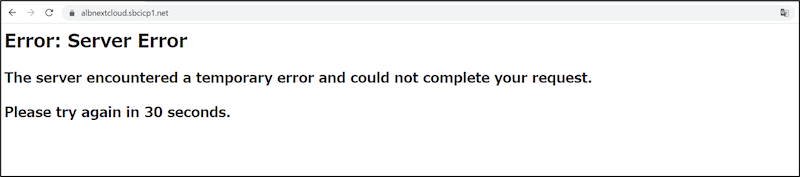
詳細確認したところ、ロードバランシングのところが異常になっていました。
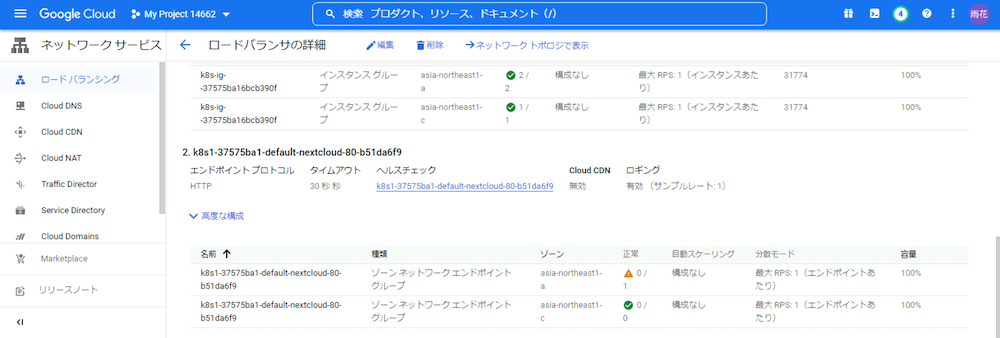
どうやらIngressの仕様で、ヘルスチェックでHTTP 200(OK)を返さないと異常と判断するようです。
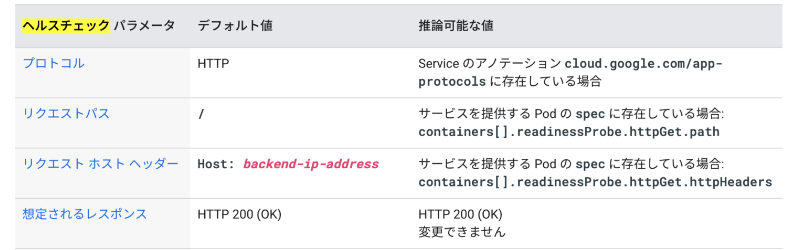
NextCloudの初期設定画面は以下の通り、HTTP 200を返しますが、初期設定完了後、リダイレクトでHTTP 302が返されます。
初期設定画面:HTTP 200を返します。

初期設定完了後:HTTP 302を返します。

初期設定完了後、HTTP 302が返ってくる理由は初期設定ページからトップページへ遷移するために、HTTP 302(Redirect)が返ってきます。
はまったポイントの対策
対策として、上記https.yamlにBackendConfigを追加します。正常接続が出来たとしてHTTP 200を返すことができるrequestPathを追加します。
```
apiVersion: v1
kind: Service
metadata:
  name: nextcloud
  labels:
    app: nextcloud
  annotations:
    cloud.google.com/backend-config: '{"default": "http-hc-config"}'
spec:
  ports:
  - port: 80
    targetPort: 80
  selector:
    app: nextcloud
    tier: frontend
  type: NodePort
```
さいごに
NextCloudはオフィス版ITとして非常に便利です。別途記事にあるように、安価であるAlibaba CloudやAWSなどにも構築できるため、クラウドベンダーを問わずにオフィス版ITとして様々な運用を行うことができます。
Special thanks to lin/bob.
参考
余談
上記のこの構成図はDiagramsで作成しました。カスタムアイコンが使えるうえに結構便利なので、皆さまもよかったら是非お試してみてください。
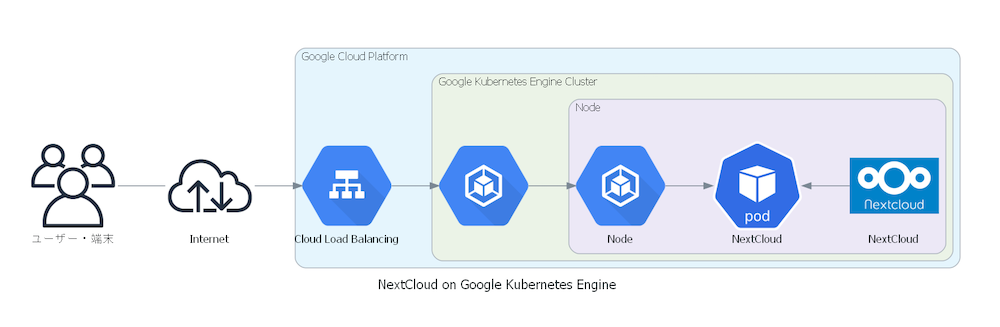
この構成図のコードは次の通りです。
```
from diagrams import Cluster, Diagram, Node, Edge
from diagrams.k8s.compute import Pod
from diagrams.gcp.compute import KubernetesEngine
from diagrams.gcp.network import LoadBalancing
from diagrams.onprem.network import Internet
from diagrams.onprem.client import Client
from diagrams.onprem.client import Users
from diagrams.custom import Custom

with Diagram("NextCloud on Google Kubernetes Engine", show=True):

    internet_01 = Internet("Internet")
    users_01 = Users("ユーザー・端末")

    with Cluster("Google Cloud Platform"):

        gcp_lb = LoadBalancing("Cloud Load Balancing")


        with Cluster("Google Kubernetes Engine Cluster"):
            myapp_ing = KubernetesEngine("")
            with Cluster("Node"):
                myapp_node = KubernetesEngine("Node")
                myapp_pods = Pod("NextCloud")

                cc_nextcloud = Custom("NextCloud", "./Custom/nextcloud.png")

    users_01 - internet_01 >> Edge(headport="c", tailport="c", minlen="1", lhead='cluster_Kubernetes') >> gcp_lb
    gcp_lb >> Edge(headport="c", tailport="c", minlen="1", lhead='cluster_MyApp') >> myapp_ing >> Edge(headport="c", tailport="c", minlen="1", lhead='cluster_MyApp pods') >> myapp_node >> myapp_pods << cc_nextcloud

```
関連サービス
\ 業務課題をデジタルで支援 /
デジタルツールの選定から導入の手引きまで、中小規模のお客さまへわかりやすくお伝えします。
メールマガジン登録(無料)
ビジネスに役立つ記事やウェビナー情報をお届けします。
おすすめの記事
条件に該当するページがございません